Installation and Guide for Developers
This section describes how to install eta_nexus using poetry and how to contribute to development.
Contributing to development
If you would like to contribute, please create an issue in the repository to discuss your suggestions. Once the general idea has been agreed upon, you can create a merge request from the issue and implement your changes there.
If you are planning to develop on this package, based on the requirements of another package, you might want to import directly from a local git repository. To do this, uninstall eta_nexus from the other project’s virtual environment and add the path to the local eta_nexus repository to the other project’s main file:
sys.path.append("<path to local eta_nexus repository>")
Installing Poetry
This project is being managed by Poetry. It’s a tool for Python dependency management and packaging. In order to install the development environment, you need to install Poetry first.
Open a terminal for the next steps (such as PowerShell).
Note
Depending on where the relevant folders for the installation are located on your OS, the terminal may need to be executed as administrator / root.
It’s recommended to install Poetry with pipx. This will install Poetry in an isolated environment. If you don’t have pipx installed, you can install it with pip:
$ python -m pip install pipx
$ python -m pipx ensurepath
Then install Poetry with pipx:
$ pipx install poetry==2.1.2
Note
Poetry will initially use the Python version that it has been installed with. To change the Python version, see managing_environments_poetry.
By default, Poetry will create its own virtual environment for each project. Only if there is already a virtual environment called “.venv” in the project folder, Poetry will use it. The virtual environments will be installed in:
C:\Users\<username>\AppData\Local\pypoetry\Cache\virtualenvs\
For more information, see the Poetry documentation.
Installation of eta_nexus
First, clone the repository to a directory of your choosing. You can use a git GUI for this or execute the following command.
$ git clone https://git.ptw.maschinenbau.tu-darmstadt.de/eta-fabrik/public/eta-nexus
You might be asked for your git login credentials.
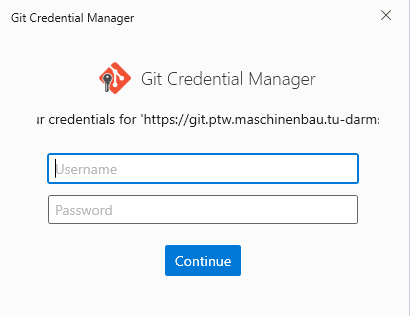
Git login window.
After this, navigate to the root directory eta-nexus
$ cd eta-nexus
.. and install the project via poetry. This includes main and development dependencies:
$ poetry sync
Note
Updating the project dependencies is done with the same command.
We use pre-commit to check code before committing. Therefore, after the installation completes, please install pre-commit before performing the first commits to the repository. This ensures that your commits will be checked and formatted automatically.
$ poetry run pre-commit install

Confirmation of correct pre-commit installation.
Note
When using pre-commit for the first time, it will take longer as it will install all the hooks.
Managing Environments with Poetry
You can run commands in the virtual environment by using the following command:
$ poetry run <command>
To check which Python version Poetry is using and get the path of that environment, execute the following command:
$ poetry env info
You can change the Python version Poetry uses with:
$ poetry env use <full python path>
Windows users can list available Python versions with:
$ py -0p
For pyenv users: ensure python points to your desired version, then:
$ poetry env use python
For more information, see the Poetry docs.
Testing your code
Please always execute the tests before committing changes. You can do this by navigating to the main folder of the eta_nexus repository and executing the following command in a terminal.
$ poetry run pytest
Or if you have the virtual environment already activated:
$ pytest
Running tests in parallel
The test suite is configured to support parallel execution using pytest-xdist. This significantly reduces test duration by distributing tests across multiple CPU cores.
To run tests in parallel:
$ pytest -n auto
The -n auto option automatically detects the number of available CPU cores. You can also specify
a fixed number of workers:
$ pytest -n 4
For tests that require fixture isolation (e.g., server tests), use the loadscope distribution strategy:
$ pytest -n logical --dist loadscope
This is the configuration used in the CI/CD pipeline and ensures that tests with class or module-scoped fixtures are properly isolated.
Note
Some tests that make real network requests may be slower or flakier when run in parallel.
If you encounter issues, try running those tests sequentially or using the loadscope distribution.
For more information, see the pytest-xdist documentation.
Measuring test coverage
To measure code coverage, use pytest-cov.
The project has coverage configured in pyproject.toml, so you can simply run:
$ pytest --cov
This generates a terminal summary and saves the coverage data to a .coverage file.
To generate an HTML report from the saved coverage data:
$ coverage html
This creates an HTML coverage report in the htmlcov/ directory. Open htmlcov/index.html
in a browser to view detailed coverage information showing which lines of code are covered by tests.
For a detailed terminal report:
$ coverage report
You can combine coverage with parallel execution:
$ pytest -n auto --cov
Note
The .coverage file persists between test runs. You can regenerate reports using
coverage html or coverage report without re-running tests.
For more coverage options, see the pytest-cov documentation.
Editing this documentation
Sphinx is used as a documentation-generator. The relevant files are located in the docs folder of the repository. If you correctly installed eta_nexus with the develop extension, sphinx should already be installed.
You can edit the .rst-files in the docs folder. A simple text editor is sufficient for this.
For test purposes, navigate to the docs folder and execute the following command:
$ poetry run make html
This creates a folder named _build (inside the docs folder) which allows the HTML pages to be previewed locally. This folder will not be committed to git. Re-execute this command each time you edit the documentation to see the changes (you may have to refresh the HTML page).
If you have problems using sphinx see I want to execute sphinx, but it complains it’s not installed.
GitLab - CI/CD
Your contribution via pull request can only be merged if the steps from the CI/CD are approved. The stages are:
check: verify the check-style
test: check all tests
deploy: verify correct documentation deploy
All the CI/CD instructions are listed in the .gitlab-ci.yml file.
GitLab - Docker containers
The directory .gitlab contains the dockerfiles which define the images that the jobs of the CI/CD run on. Currently there are two main dockerfiles, one to describe Python-Julia environment and another just for Python.
All the dockerfiles contain a corresponding image stored in Packages & Registries > Container Registry. In which the image will be used in a container to execute the jobs.
To update the containers, first you need to log in to GitLab through docker.
$ docker login git-reg.ptw.maschinenbau.tu-darmstadt.de
Then you build and upload the image from the dockerfile. For example, for the pyjulia image use the following command inside the project folder:
$ docker build -t git-reg.ptw.maschinenbau.tu-darmstadt.de/eta-fabrik/public/eta-nexus/pyjulia:py3.9-jl1.9 -f .gitlab/docker/pyjulia-39-19.dockerfile .
Using tags for the images is a good practice to differentiate image versions, in case it’s not used, it’s automatically labeled as latest. Currently there are three images for Python environments called python, with Python versions differentiated by tags (py3.9, py3.10 and py3.11) and there is an image with combined Python and Julia installations.
The last step is to upload the images to the private docker registry.
$ docker push git-reg.ptw.maschinenbau.tu-darmstadt.de/eta-fabrik/public/eta-nexus/pyjulia:py3.9-jl1.9